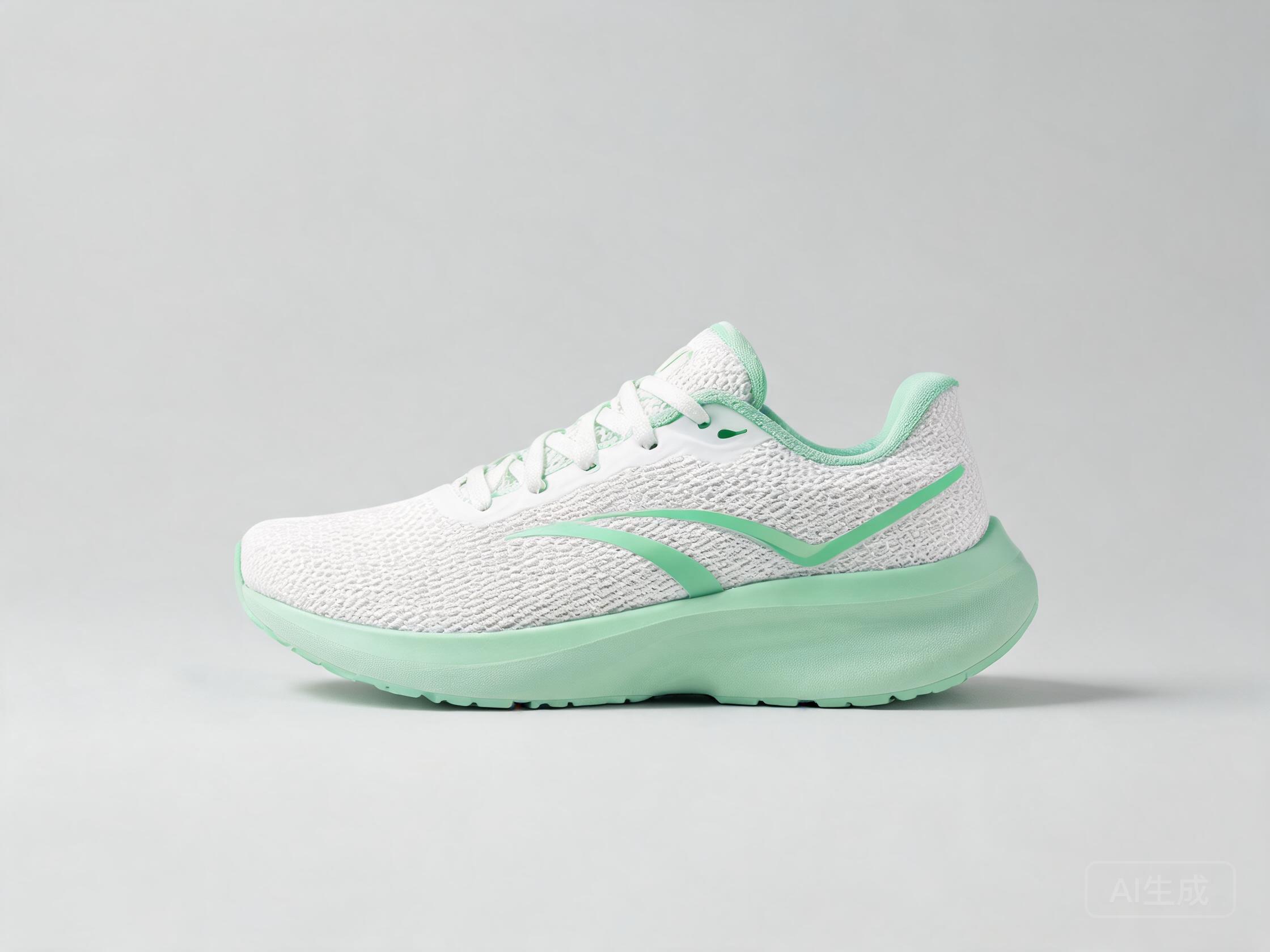
Recipe Details
- Prompt
Professional LinkedIn post graphic about {{topic}}, {{visual_style}}- Model
- FLUX.2 Dev · Lucid Origin
- Aspect Ratio
- 1:1
- Resolution
- 1024 × 1024
- Reference Images
- Not used
- Settings
- Default
Built for professional use cases: fill in the variables, generate on every model at once, and compare. Every professional project has non-negotiables — brand colors, legible text, clean backgrounds — and this recipe is the fastest way to see which model actually honors them before you spend real credits.
By the UnitPic editorial team
Prompt Template
Professional LinkedIn post graphic about {{topic}}, {{visual_style}}Replaceable Variables
{{topic}}{{visual_style}}{{topic}}— the subject of the graphic, e.g. "Q4 growth" or "remote hiring".{{visual_style}}— the aesthetic — "flat vector", "editorial photo" or "isometric".
Model Combination
Each run sends your filled-in prompt to FLUX.2 Dev by Black Forest Labs (2 credits, ~15s per image) and Lucid Origin by Leonardo (6 credits, ~8s per image), in parallel. You are not re-generating on one model and hoping; you are comparing interpretations side by side. Running every model once adds up to 8 credits for 2 parallel takes — small change for a full comparison in one click.
How to Judge the Results
When the LinkedIn Visual Post grid finishes rendering, score every output against these four checks before you spend credits refining any of them.
Restraint
The strongest LinkedIn visual post looks edited, not generated — muted palette, no lens flares, no stock-photo gloss.
Data honesty
If a render implies a chart, it must not invent numbers. Abstract beats fake-precise in a professional feed.
Whitespace
Generous margins signal intentionality. A {{visual_style}} treatment that breathes outperforms one that fills every pixel.
Tone match
Judge each output against how your audience actually talks — formal, minimal or designed, the visual should match the words beside it.
How to Run the LinkedIn Visual Post Recipe
- 1Fill in the template variables — start with topic, since it shapes everything else — and paste the finished prompt into the Studio prompt box.
- 2Pick the models you want to compare. This recipe pre-selects FLUX.2 Dev, Lucid Origin, but you can add or remove models freely.
- 3Generate once and read the 2 results as a set: compare composition, color and detail across models before picking a winner to refine.
Recipe FAQ
How much does the LinkedIn Visual Post recipe cost per run?
The recipe itself is free — you only pay for generations. One pass through all 2 models is 8 credits; the 10 free starter credits cover a full run.
Can I use this recipe with other models?
Nothing is locked to the default line-up (FLUX.2 Dev, Lucid Origin). Replace them with anything in the UnitPic catalog; the prompt template works with every model.
Do I need to keep the template variables to get good results?
Treat the template as a checklist of the details that matter for this use case. The wording can change, but the specificity — especially topic — is what gets you commercial-grade output.